
Personal media collections · 07 / Encrypted playback
Play Encrypted Videos on Mac Without Exporting a Decrypted Copy
Open a private video in LumenPod, play and seek inside the app, then lock its vault when you finish.
By LumenPod · Updated November 6, 2026 · Direct-download edition
A private video library you can still watch
Encrypting a video should not mean exporting a readable file every time you want to watch it. In LumenPod, open the right vault and play a supported encrypted video in the app. You can seek through it without first exporting a decrypted copy.
This guide covers the direct-download edition for Apple Silicon Macs running macOS 14 or later. Your collection can remain in its existing folders when cataloged; only the files you explicitly encrypt enter the protected workflow. Importing a folder does not encrypt every file inside it.
Try encryption and playback
Use a short, non-sensitive video that already plays correctly on your Mac, and keep a backup.
- Start the 14-day trial and add its folder with Import Media.
- Open a vault from Settings → Encryption. Save its separate password somewhere safe.
- Select the video and choose Encrypt. Review the original-file handling rather than assuming every readable copy will disappear.
- Open the encrypted item inside LumenPod. Play, pause and drag the progress control to another point in the video.
- Lock the vault when you are done, then reopen it with the same password to check access again.
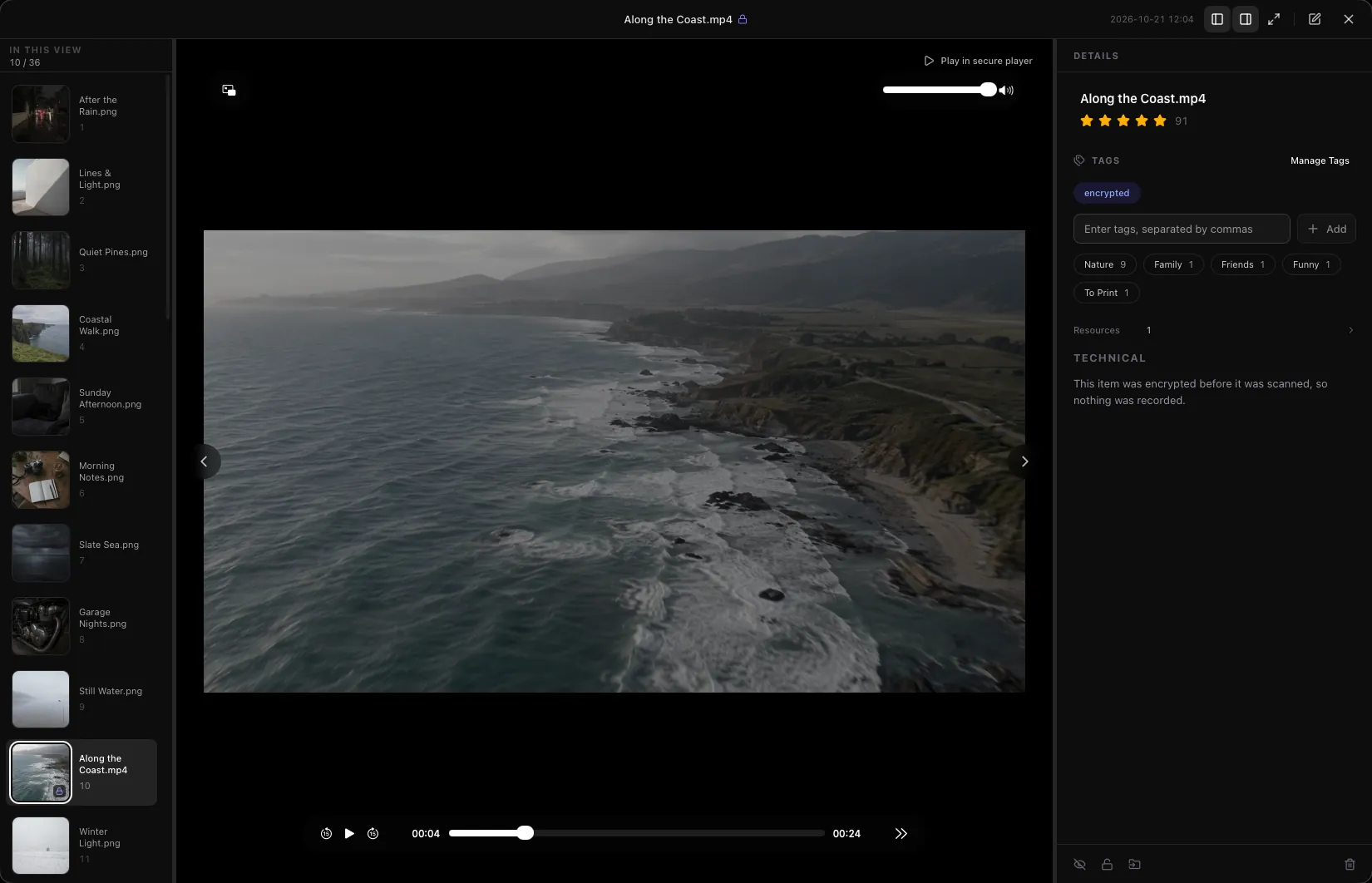
The built-in encrypted playback path decrypts content for playback without writing an exported plaintext video to disk. The operating system and display still process readable frames during an unlocked viewing session. This is not a claim that no trace can ever exist anywhere on the machine.
What locking does
Locking ends access to that vault in the app. Reopen it with its password to view its protected media again. An unlocked viewing session is accessible to whoever can use that session, so lock the vault and your Mac before leaving the computer.
Different passwords open separate spaces; the opening dialog does not list the others. That interface behavior is not forensic deniability. It does not hide every sign of encrypted data from someone inspecting your disk or database.
Formats, originals and recovery
- Formats: encryption does not add codec support. A video the built-in player cannot decode may still fail after encryption. Test your actual files before protecting a large collection.
- Other players: this guide describes playback inside LumenPod. It does not promise encrypted playback through Infuse, WebDAV or a browser share; those public sharing paths exclude vault media.
- Originals: if you keep an unencrypted original, Finder and other applications can still read it. Encryption does not remove independent copies in Photos, cloud storage, exports or backups.
- Recovery: back up recovery data and its key separately, plus the encrypted media itself. Recovery files restore key access, not deleted video files. See the recovery workflow.
Encrypted playback questions
Must I decrypt the entire file before watching?
You do not need to export a decrypted video first when using supported playback inside LumenPod. Deliberately exporting or decrypting a file is a separate action that creates readable media outside this protected viewing workflow.
Can I seek in an encrypted video?
Yes, supported encrypted videos can be played and seeked inside the app. Test playback and seeking on a sample of your formats and encodings.
Does locking remove an original I kept?
No. A retained unencrypted original is independent of the vault lock. Review the original-file setting and other copies before relying on encryption for privacy.
Do I lose access when the trial ends?
Existing vaults can still be opened, and you can keep adding, organizing, playing, exporting and decrypting media. A license is needed to encrypt or hide more media after the trial. See pricing and the EULA.
For the broader privacy choices on a family or work computer, read Keep Photos and Videos Private on a Shared Mac.