
The LumenPod guide · Privacy on Mac
Password-Protected Photo Albums on Mac: Hidden Albums and Encrypted Vaults
Want a photo album with its own password? Learn what Apple Photos can lock, how to protect photos and videos in a local encrypted vault, and where readable originals can remain.
Already using a vault? Find password and recovery instructions in Help.
By LumenPod · A guide to the direct-download edition
Can you create a password-protected album on Mac?
Apple Photos does not let you set a separate password on an ordinary photo album. Its Hidden album can require Touch ID or your Mac login password, but it has no independent password for each album. If you want selected photos to open with a password of their own, an encrypted vault can provide that separate space.
That matters when someone else knows your Mac login. You might lend a family member the computer to look through holiday pictures while keeping personal photos private. A Hidden album still uses the Mac's login credentials. A vault with a different password gives the selected files their own access requirement, provided you lock it when you finish and check for readable copies elsewhere.
A password-protected photo album can also mean an online gallery that asks visitors for a password. This guide covers local photos and videos on a Mac. LumenPod's vault passwords do not create a password-protected website or a cloud album you can send to friends.
Ordinary albums, Hidden albums and encrypted vaults
| Where you keep the photos | What opens them | Can the collection have its own password? | What to check |
|---|---|---|---|
| An ordinary album in Apple Photos | Access to the Photos library | No separate album password | Putting pictures into an album does not add a lock. |
| Apple Photos Hidden album | Touch ID or your Mac login password when its lock is enabled | No independent password for each ordinary album | It covers hidden items in Photos and still follows your iCloud Photos settings. |
| A LumenPod encrypted vault | That vault's password, with recovery available through saved recovery files | Yes, each vault has its own password | Encrypt the selected files and review originals outside the vault. Ordinary collections do not gain passwords. |
For photos you only want out of everyday browsing, the built-in Hidden album may be enough. For a photo collection that needs a password different from your Mac login, follow the vault workflow below. It also handles videos and audio kept in Finder folders, so you can protect a recording alongside the pictures it belongs with.
Choose the protection you need
To password-lock photos, videos or audio on a Mac, first decide who should not see them. For pictures and videos you simply want out of your main Photos library, Apple Photos has a Hidden album. To protect a lost Mac, use FileVault. For files that need their own password, including audio recordings and media kept in Finder folders, use a locally encrypted vault.
FileVault protects the startup disk, and a vault gives selected media its own password. You can use both.
| Your goal | Start with | What to remember |
|---|---|---|
| Keep photos and videos out of your main Photos view | Apple Photos Hidden album | On macOS Ventura and later, it is locked by default using your Mac login password or Touch ID. It covers items in your Photos library only. |
| Protect the data on a lost or stolen Mac | FileVault | It protects the startup disk at rest; files remain available to an authorized, signed-in user. |
| Give selected photos, videos and audio their own password | An encrypted vault in LumenPod | Protect the files, check any unencrypted copies, and back up your recovery files. |
The Hidden album is often enough for occasional privacy inside Photos. It falls short when you want a password that is different from your Mac login, when the media lives in Finder folders or on an external drive rather than in Photos, or when the files are audio, such as interviews, exported voice memos or other private recordings, which Photos does not manage.
Hide photos and videos in Apple Photos
For occasional privacy within an existing Photos library, start with the built-in option:
- Open Photos and select the pictures or videos.
- Choose Image → Hide Photos, or Control-click the selection and choose the hide option.
- Confirm. The items disappear from the main library view but are not deleted.
- To find them again, choose View → Show Hidden Photo Album, then open Hidden under Utilities. Authenticate when prompted.
On macOS Ventura and later, the Hidden album is locked by default. Keep its authentication setting enabled. It uses your Mac login credentials rather than a separate collection password. If you use iCloud Photos, hiding pictures also hides them on your other devices; it does not move them out of iCloud.
See Apple's instructions for hiding photos on Mac.
Turn on FileVault
FileVault adds disk-level protection, which matters if your Mac is lost or someone tries to access its storage without your login credentials. On recent macOS versions, look in System Settings → Privacy & Security → FileVault and follow the setup instructions. Store your recovery information somewhere you can reach without this Mac.
After you sign in, your apps can access the files your account is allowed to read. FileVault therefore does not give one collection a separate password within an already unlocked session. Use a separate macOS account for each person who shares your Mac, and lock your screen when you step away.
Read Apple's FileVault setup and recovery guidance before changing its settings.
Password-lock media in LumenPod
LumenPod is useful when your photos, videos and audio already live in folders and you want to browse, organize and password-lock selected files with local encryption. Your media is not uploaded to LumenPod servers.
The steps here describe the direct-download edition from this website, for Apple Silicon Macs running macOS 14 or later. It includes a 14-day full-feature trial. This edition organizes files where they are; importing a folder does not automatically copy or encrypt it.
1. Add a small folder first
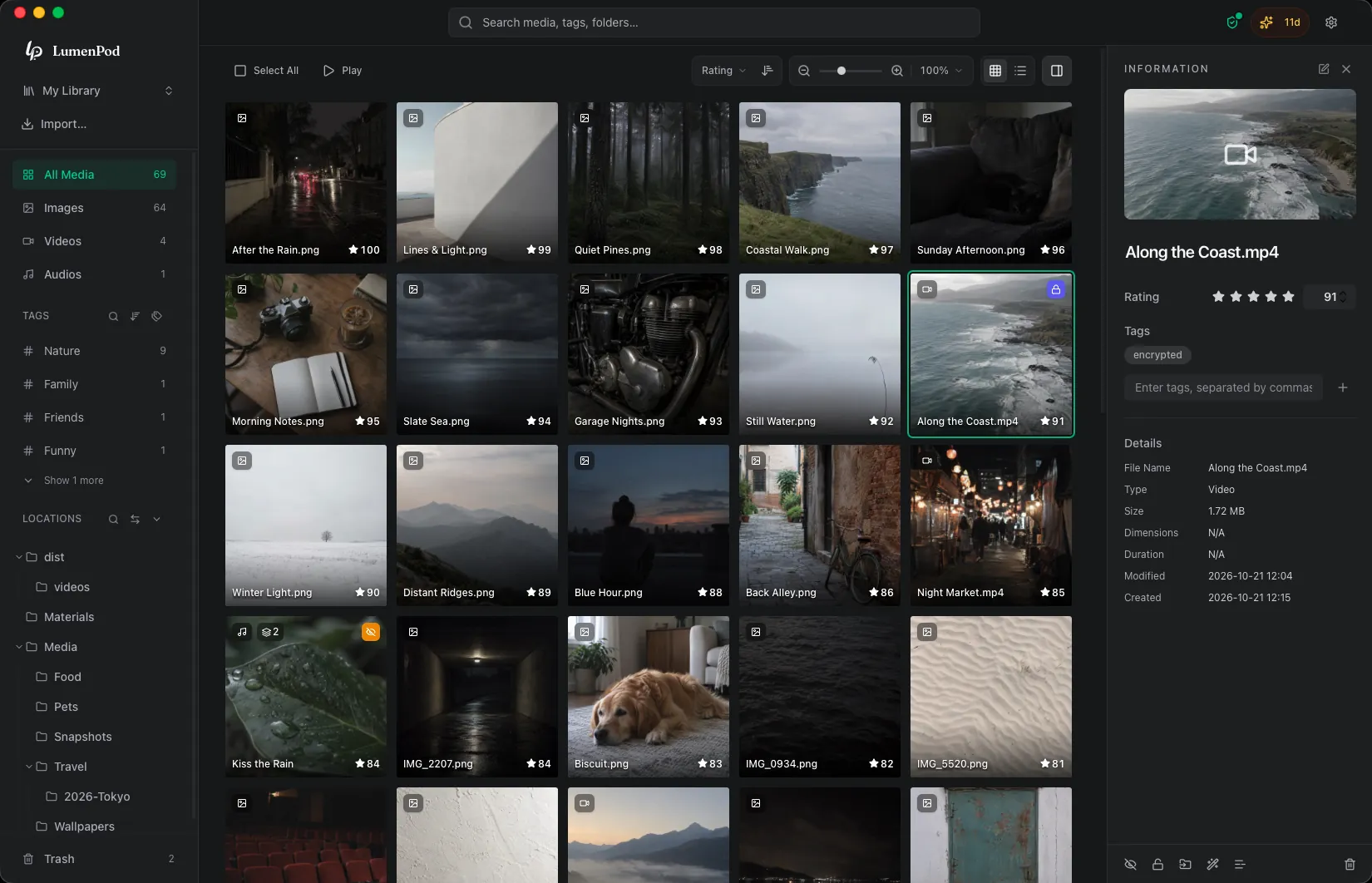
Download LumenPod, start the trial, and choose Import Media to add a folder. Start with a few non-sensitive sample files so you can check the workflow before protecting your main collection. Tags, ratings and search help organize the library; they do not encrypt its contents.
2. Open a vault with its own password
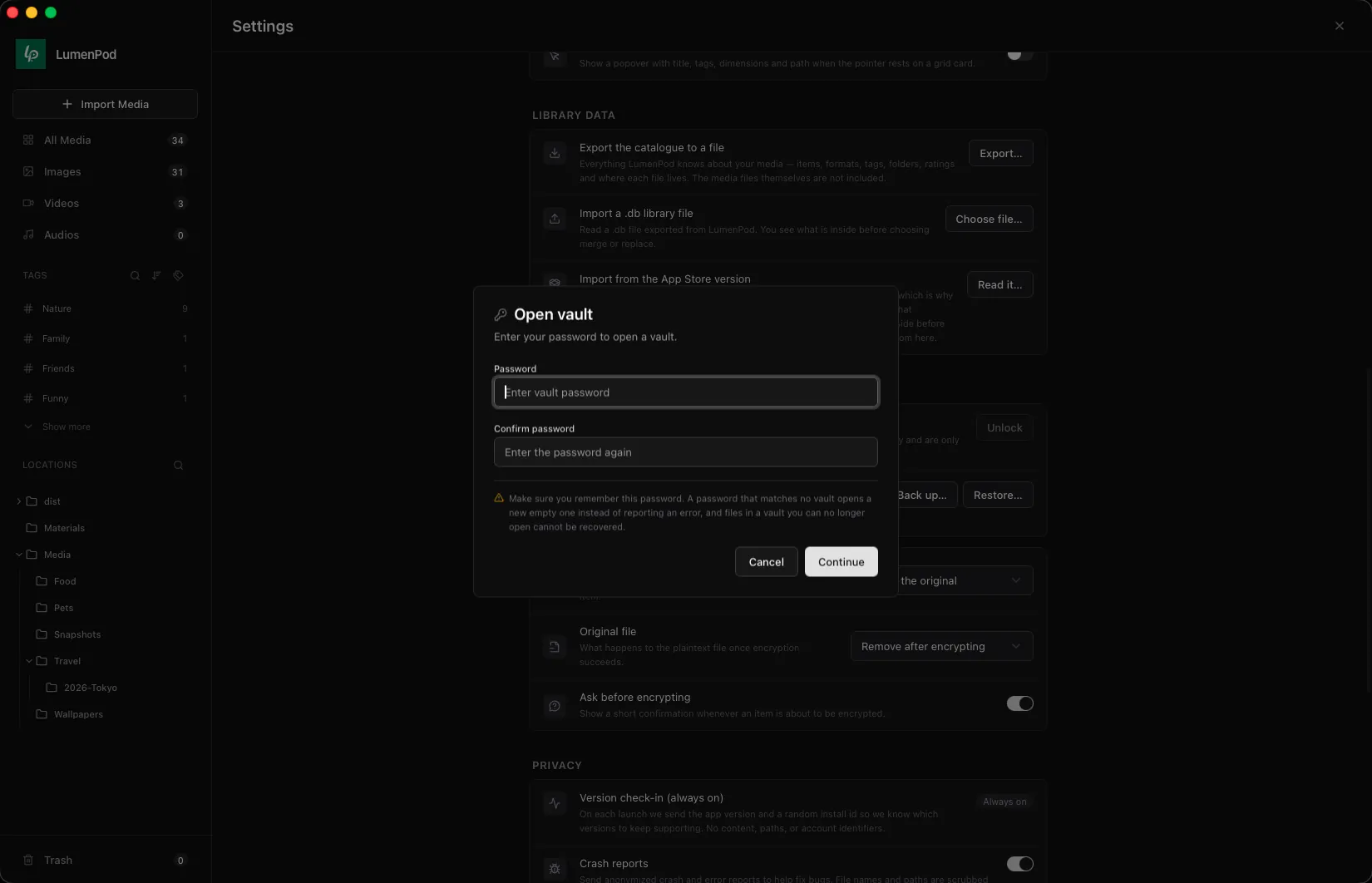
In Settings → Encryption, open a vault and follow the password dialog. Each password opens its own vault. Use a strong, unique password and save it in your password manager.
The app can open a new, empty vault when a password does not match an existing one. If a vault looks unexpectedly empty, check that you entered the intended password before adding more files.
3. Encrypt the selected files
Use Encrypt on a sample item. Photos, videos and audio files are encrypted the same way. Check Settings → Encryption for the encrypted file location and the Original file option. The app can keep the original or remove it after encryption; choose deliberately.
If you keep the original, that unencrypted copy remains readable outside the vault. Removing an original after encryption is not a guarantee of secure erasure, and it does not remove copies from Photos, cloud storage, messages or older backups.
Check that the encrypted sample opens correctly with the intended vault before applying the same workflow to more files. Hiding an item changes visibility; use encryption when you need its file contents protected.
4. Back up recovery files
In Settings → Encryption → Recovery files, choose Back up…. LumenPod saves a recovery data file, then gives you its key: copy it as a recovery code into a password manager, or save it as a key file. Keep the data file and the key in separate places. Anyone who has both can restore access to your vaults without the original passwords.
Update this backup when the app reports that your vaults have changed. Follow its instructions about replacing older recovery files. Keep a separate backup of the encrypted media too: recovery files restore access to keys, not missing media.
Your website password cannot unlock a vault. Without its password or valid recovery files, support cannot recover the encrypted collection for you.
Separate passwords, separate spaces
Suppose you want one private photo album for personal pictures and another for work documents. In LumenPod, use separate vault passwords for the files that need separate access. You can include photos, videos and audio in a vault, so a collection does not have to be limited to still images.
Collections and tags organize the library. Adding an item to a collection does not encrypt it, and a collection name does not become a password prompt. To password-protect the media, open the intended vault and encrypt the files themselves. A library can also be hidden behind a vault; hiding controls whether it appears in the interface, while encryption protects the selected file contents.
Each password opens its own vault, and the opening dialog does not list the other vaults. Lock the current vault before opening another one. If an expected collection looks empty, check the password: an unmatched password can open a new, empty space.
This is interface separation, not a promise of forensic deniability. Someone inspecting the disk or database may still find signs of encrypted data or metadata. It does not make retained originals private. For practical choices on a shared computer, see the shared Mac guide. For watching protected files, see encrypted video playback.
Check the copies outside your vault
Encrypting one file only protects that copy. Before calling a collection private, check where else its contents might be readable:
- Apple Photos and iCloud Photos. A vault does not change an existing Photos library or its sync settings.
- Voice Memos, Music and recording apps. A recording you exported still exists in the app it came from, and songs or audio added to Music keep their own copy.
- Finder folders. Review Downloads, Desktop, export folders, shared folders and other disks.
- Messages and cloud services. Previously shared attachments and uploaded copies are independent of the file on your Mac.
- Backups. Older backups may still contain unencrypted originals. Use encrypted backups and control who can access them.
Verify that you have a working protected copy and a usable backup before removing anything. Review originals individually rather than assuming an import, hide action or encryption operation has handled every duplicate.
When you finish viewing private media, close or lock the vault and lock your Mac before leaving it unattended. An unlocked vault is a viewing session: someone using that session may be able to see what you can see.
Questions before you start
Can I password-protect an album in Apple Photos?
Apple Photos has no separate password setting for each ordinary album. In LumenPod, each vault has its own password, and ordinary collections remain organizational lists. Use different vaults when the files need different passwords; putting files into two collections alone does not separate access.
Does a password-protected album encrypt the photos?
The word "password-protected" alone does not tell you how an app stores its files. A password might control a viewing screen, a shared web page or the keys needed to decrypt media. In LumenPod, importing and organizing files leaves them readable at their existing locations. The Encrypt action protects the selected file contents. Any original you keep remains readable outside the vault.
Can I keep a private photo album on an external drive?
Photos and videos in Finder folders on an external drive can be added to LumenPod's library. Adding them builds the library view; it does not encrypt the drive or everything in the folder. Before encrypting selected items, check the encrypted file location in Settings → Encryption and decide what should happen to the originals. Keep a separate backup of the encrypted files and your recovery information.
Can I share a password-protected album online?
LumenPod's local vault is not a hosted album-sharing service. A vault password does not create a public gallery link. If you export a decrypted photo to share it, the exported file is readable independently of the vault. Choose the recipient and sharing service with that copy in mind.
Can I password-lock audio files on Mac?
Apple Photos does not manage audio files, so the Hidden album cannot lock them. In LumenPod, import the folder that holds the recordings, open a vault and encrypt the files you choose, the same way as photos and videos. Then check Voice Memos, Music or wherever the recordings came from for other copies.
Can I use LumenPod without uploading my media?
Yes. Media browsing, encryption and decryption happen locally. License activation and periodic checks need an internet connection. Local storage does not disable other backup or sync tools you have configured on your Mac; review those separately.
Does uninstalling LumenPod unlock my files?
No. Encrypted files still require a compatible copy of LumenPod and the keys needed to open them. Keep the app, media backups and recovery files available. Export and verify anything you want to use outside the app before removing it.
What should I do first?
Pick a few sample files, back them up, and practice the full workflow: import, open a vault, encrypt, reopen and back up recovery files. Once you understand where each copy lives and how to regain access, apply it to your private collection.
Apple Photos and FileVault instructions link to Apple’s documentation above. LumenPod instructions describe this website’s direct-download edition; labels can vary by app version. See our privacy policy for details about data handling.