
Personal media collections · 03 / One work, many files
Organize Video Versions, Cover Art and Subtitles on Mac
Keep a collected video's alternate copies and supporting files together as one library item.
By LumenPod · Updated October 24, 2026 · Direct-download edition
Keep versions instead of losing context
To organize multiple versions of a video on Mac, keep the copies under one collected work and distinguish the role of each file. A high-quality original and a smaller viewing copy may both be worth keeping. Cover art and subtitles belong with that work, but they are not additional videos to browse as unrelated entries.
LumenPod represents this as one item with related files. You can keep alternate video copies, add cover art and subtitles, and choose which copy plays. Grouping copies is an organizational decision; it does not transcode, combine or deduplicate their contents.
Organize one video with its related files
Start with a backed-up sample whose files you recognize. These instructions describe the direct-download edition; exact labels can vary by app version.
- Add the folder containing your video files through Import Media. Confirm that each intended copy opens before grouping anything.
- Open the item's editor and review its Resources section. Add the alternate copy to the same item, or use the merge action to bring an already catalogued item into it. Check which item you are keeping before confirming.
- Add artwork to the cover slot and subtitle files to the subtitle slot. Review the file names so that a poster is not mistaken for another playable copy.
- Choose each alternate copy in turn and confirm which one plays. Check that the intended subtitles match that copy's language and timing.
- Add tags and a rating to help find the work again. Browse the library to confirm that the grouped work appears as the entry you expect.
If the subtitles and artwork already sit beside the video under its name, you do not have to find them yourself. With Coastal Walk.mov in a folder, the editor suggests Coastal Walk.en.srt, Coastal Walk - 720p.mp4 and cover.jpg under the matching slot. A file counts when its name is the video's name, or starts with it followed by a dot, dash, underscore, space or bracket; images named poster, cover or folder count as cover art. Nothing is added until you click Add, or Combine when the file is already its own item. To go through the whole library at once, use Settings → Library → Group related files → Review.
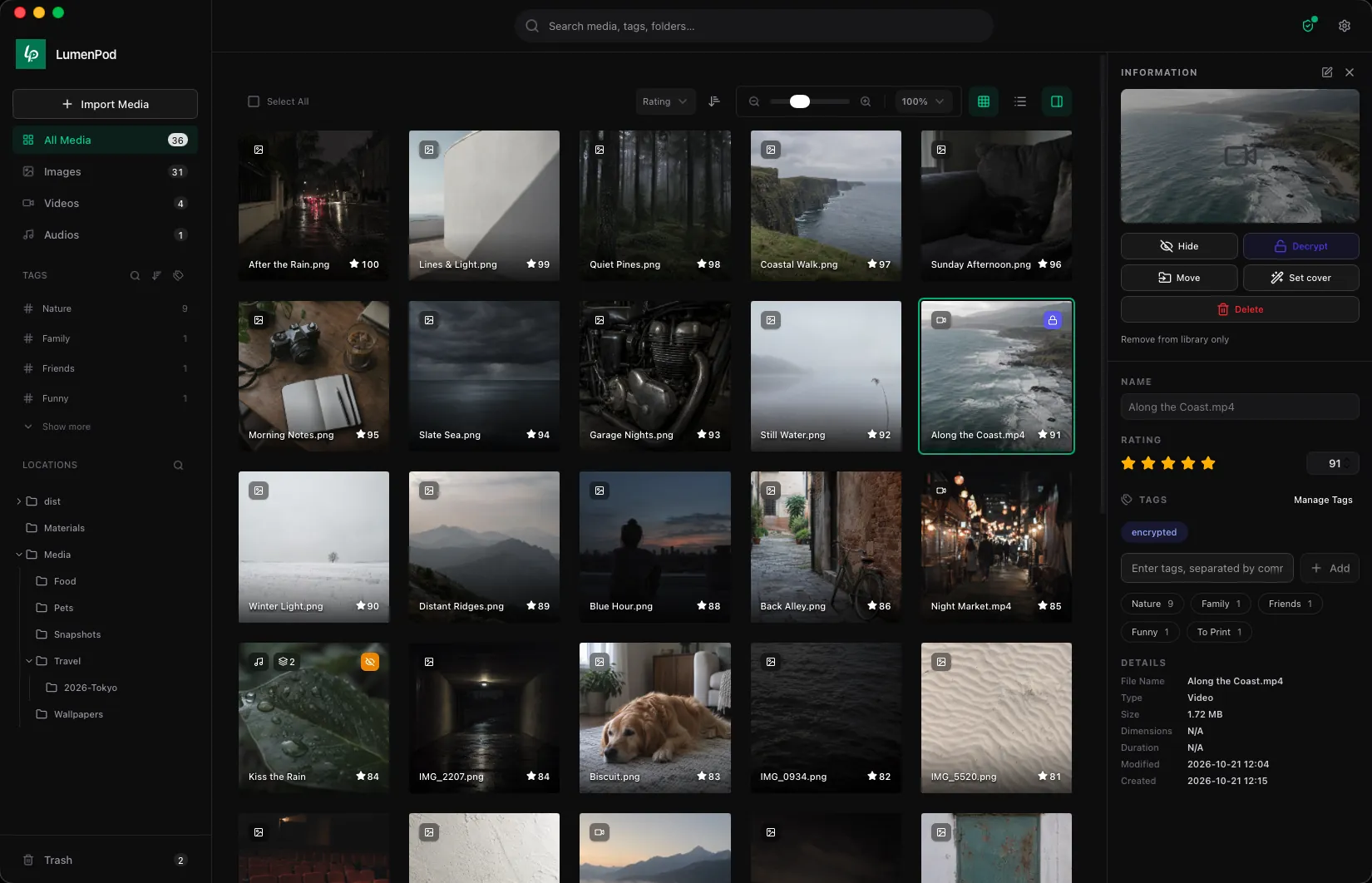
A simple file plan for video collectors
Use descriptive names to preserve meaning outside the app. The names below are an example, not a required syntax, but because each starts with the video's name, LumenPod can suggest them for that item.
| Example file | Role in the collection |
|---|---|
| Coastal Walk.mov | The original video copy you want to retain. |
| Coastal Walk - 1080p.mp4 | A smaller alternate copy for viewing. |
| Coastal Walk - Cover.jpg | Artwork for the item. |
| Coastal Walk.en.srt | A subtitle file matched to the intended video. |
A different cut can require different subtitles even when it has the same title. Check playback rather than assuming one subtitle file fits every copy. LumenPod does not retime subtitles.
If you grouped the wrong files, review the split action to separate a file back into its own item. Read the action and confirmation carefully: separating an item is different from deleting a file. Avoid using deletion as a way to experiment with your only originals.
Subtitles inside the video file
Some videos carry their subtitles inside the file, as tracks in an MKV or MP4. In the direct-download edition, open the item's editor and use the menu on the video's file card.
- Extract subtitles… copies text tracks out as
.srtfiles and adds them to the item as subtitles. The video file is not changed. - Embed subtitles… writes the subtitle files you tick into the video. Picture and sound are copied as they are. Tracks already inside the video are kept only if you tick them. By default the result is saved as a separate copy and added to the item as another version; untick Save as a separate copy to change the original file where it is, and its previous version goes to the Trash. A format that cannot hold subtitles always produces an MKV copy.
Both use an FFmpeg you install yourself; LumenPod does not bundle it and shows how to install it the first time you need it. They work on unencrypted videos only. Image-based subtitles from Blu-ray or DVD sources are listed but cannot be extracted, because turning pictures into text needs OCR.
Add a title before you have the file
A collection sometimes starts with a name. LumenPod supports a manual entry with a name and media type, even when you do not yet have a file. Attach the file to that entry later rather than creating an unrelated second item.
Use this for works you intend to add to your collection. A manual entry is a record, not a downloadable copy, and it cannot play until you attach an accessible supported file.
Video collection questions
Are alternate copies just duplicates to delete?
Not necessarily. Resolution, format or the cut itself can differ. Decide what each version contributes before removing anything. Grouping them in one item lets you retain that context without treating every file as a separate collected work.
Does this automatically download posters or subtitles?
This workflow describes attaching files you already have. It does not promise automatic artwork lookup, subtitle downloads or online movie metadata matching.
Does grouping videos save storage space?
No. The files remain separate resources. Grouping makes the library easier to browse; it does not compress, deduplicate or merge the video data.
Can the video files stay on an external drive?
The direct-download edition catalogs existing media on external drives. Keep the relevant drive connected to open its files. See cataloguing media across external hard drives for offline lookup, or organizing media without moving files for folder behavior.