
Personal media collections · 01 / Across drives
Organize Photos, Videos and Music Across External Hard Drives on Mac
Find which drive holds a photo, video or music file—even when that drive is unplugged.
By LumenPod · Updated October 24, 2026 · Direct-download edition
What you can find after unplugging a drive
When your photos, videos and music are spread across several external hard drives, the hard part is remembering which drive holds what. LumenPod remembers the files you add while each drive is connected. After you unplug a drive, those files stay in your library: you can search for an image, video or audio file, see which drive it is on, and reconnect that drive to open the original.
This is an index of your collection, sometimes called an offline catalog, not another copy of it. It cannot play a video or a song from an unplugged drive, and it cannot recover a file from a failed disk.
For example, you might keep photos on Photo Archive, videos on Video Archive, and music and recordings on Audio Archive. A shared tag such as Coast helps you find related media without remembering which drive it is on.
Organize multiple external hard drives
These steps describe LumenPod's direct-download edition for Apple Silicon Macs. External drive support is not available in the Mac App Store edition.
- Give each drive a recognizable name and label the physical drive to match. Two drives named Untitled are easy to confuse.
- Connect the first drive. In LumenPod, use Import Media to add a small media folder from it. Your files stay where they are on the drive; nothing is moved into a new library.
- Open a few photos, videos or music files while the drive is connected. Confirm that the originals open from the location you expect.
- Add useful tags and ratings. Use subject or genre tags that work across drives, rather than repeating a drive's name as every item's tag.
- Repeat with the media folders on your other drives. Start with one representative folder on each drive before adding the rest of your collection.
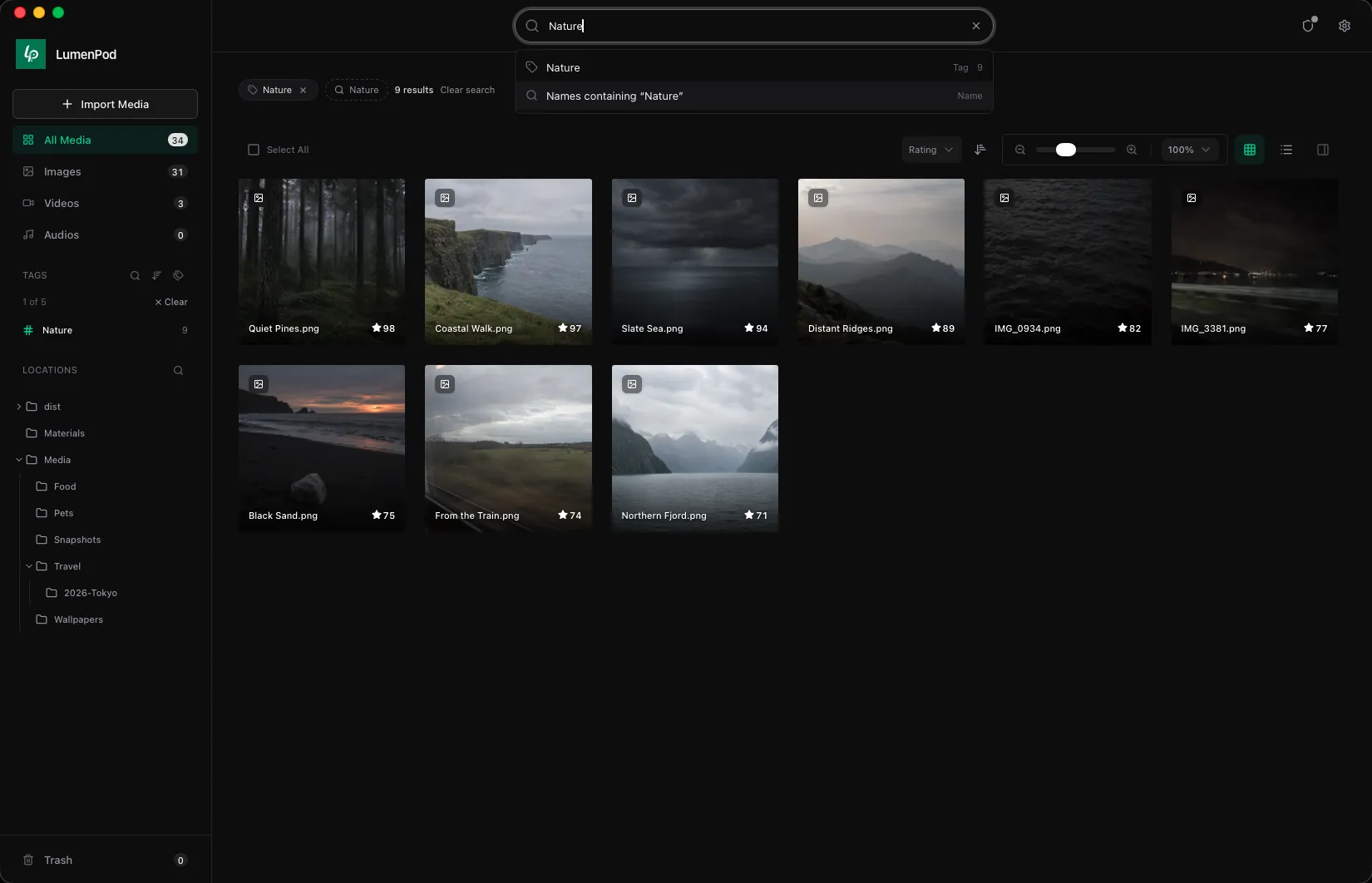
Search files when the drive is unplugged
After import has finished and no file operations are running, eject a drive using macOS. Its files stay listed in LumenPod and are marked offline. Search by a remembered name or tag, and check the offline item for the drive name. Connect that drive again to open the file.
Try this with a sample folder before relying on it for your archive. Search for one known file with the drive connected, then repeat after ejecting it. You should find the same item and see which drive holds it, while opening the original still requires the drive.
Keep the distinction clear: finding a file on an unplugged drive means LumenPod has a searchable record of it. Playing that file would require a copy you can reach. One does not imply the other.
Keep your drives and library in step
Use descriptive drive names and stable folder locations. If you rename or move originals outside the app, check whether the library can still open them; an item in your library is not proof that its saved location is current. Likewise, a drive's contents can change while it is connected to another computer, so treat the library as a record of what you added, not a live list of what is on a disconnected drive.
Keep an independent backup of the actual media. LumenPod does not replace a second copy of your photos, videos or music. If selected media needs a password, handle that as a separate step: read how to password-lock photos, videos and audio and keep the recovery files described in support and recovery guidance.
External drive questions
Can I search an external hard drive without plugging it in?
You can search files you added to LumenPod beforehand. LumenPod cannot discover new files on a drive it has never read, or notice changes made while that drive is disconnected.
Can I watch videos or play music from an unplugged drive?
The original drive must be connected to open its files. LumenPod helps you find the right drive; it does not keep a playable copy of every file on your Mac.
Does it list every file on my disks?
This guide covers a personal media collection of supported photos, videos and audio. It does not promise a list of every document, application or system file on a disk.
Can I organize media without moving files off the external drive?
Yes, the direct-download edition leaves media where it is. Read how to organize media without moving files for the difference between adding items to a library and copying originals.